|
|
Using CIAO
-
Installing CIAO
- The ACE+TAO+CIAO package is available from the following location:
http://deuce.doc.wustl.edu/Download.html.
- Instructions for building ACE and TAO are available here:
http://www.cs.wustl.edu/~schmidt/ACE_wrappers/TAO/TAO-INSTALL.html.
- Documentation for installing CIAO can be found at $CIAO_ROOT/README.
-
Configuring Cadena for CIAO
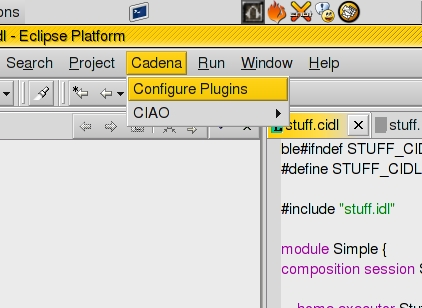
- Open a .cidl or an .idl file. This will make the "Cadena" menu available.
- Select "Configure Plugins" from the Cadena menu.
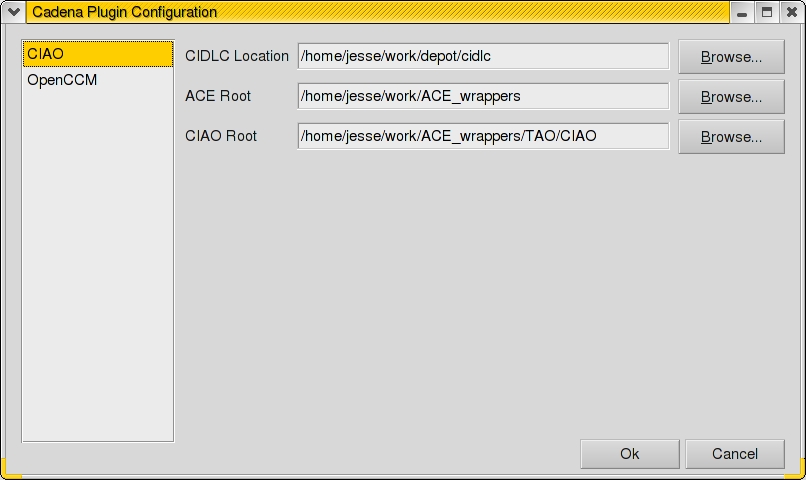
- Select "CIAO" from the list of plugins on the left.
- Enter the location of the CIDLC compiler, ACE root, and CIAO root.
-
Editing a .cidl file
- The Cadena menu will be visible when editing a .cidl file. CIAO tools can be invoked from this menu.
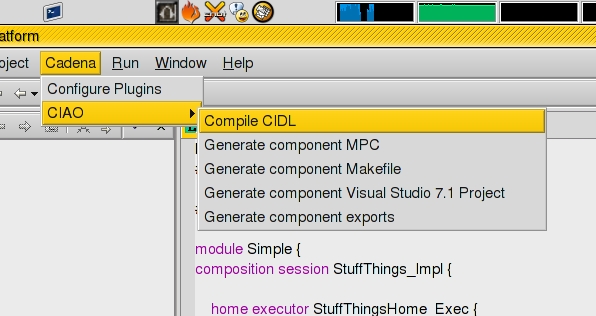
- To use the CIAO cidl compiler, select "Compile CIDL". This will generate equivalent executor IDL definitions.
- To create an ACE project file for a component, select "Generate component MPC".
- Once the MPC file is generated, it is possible to create a Makefile or a Visual Studio 7.1 project file.
- Component export files for Windows DLL's can be generated through Cadena by selecting "Generate component exports".
-
Editing a scenario file
- The Cadena menu is also available when editing a scenario file, but the items in the menu now reflect options for a scenario file.
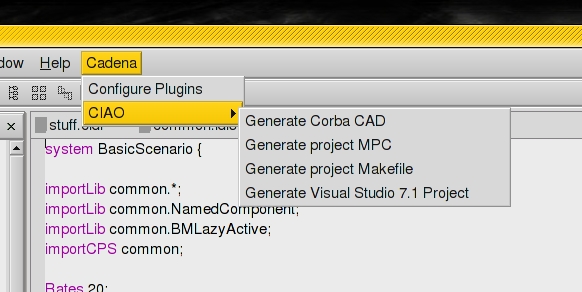
- Corba CAD XML files can be generated by selecting "Generate Corba CAD". This initial implementation produces a CAD file with no partitioning or any other special features.
- An ACE project file can be created for an entire project by selecting "Generate project MPC".
- Once this has been done, it is possible to create a Makefile or a Visual Studio 7.1 project file.
|